
2.6 KiB
2.6 KiB
| comments | description | keywords |
|---|---|---|
| true | Import every dataset from your Roboflow workspace into Ultralytics Platform with a single API key. | Ultralytics Platform, Roboflow, Roboflow import, dataset import, integrations, YOLO, computer vision |
Roboflow Integration
The Roboflow integration imports every supported dataset in your Roboflow workspace into Ultralytics Platform at its latest version. Re-run it any time to pull in datasets you've added since your last import.
Import from Roboflow
- Go to Settings > Integrations and find the Roboflow card.
- Paste your Roboflow API Key and click Import.
- Review the Import from Roboflow preview dialog, which lists:
- New datasets that will be imported
- Already imported datasets that will be skipped
- Any datasets with a missing version, unsupported tasks, or that couldn't be sized
- Storage required, checked against your remaining storage
- Click Import to start.
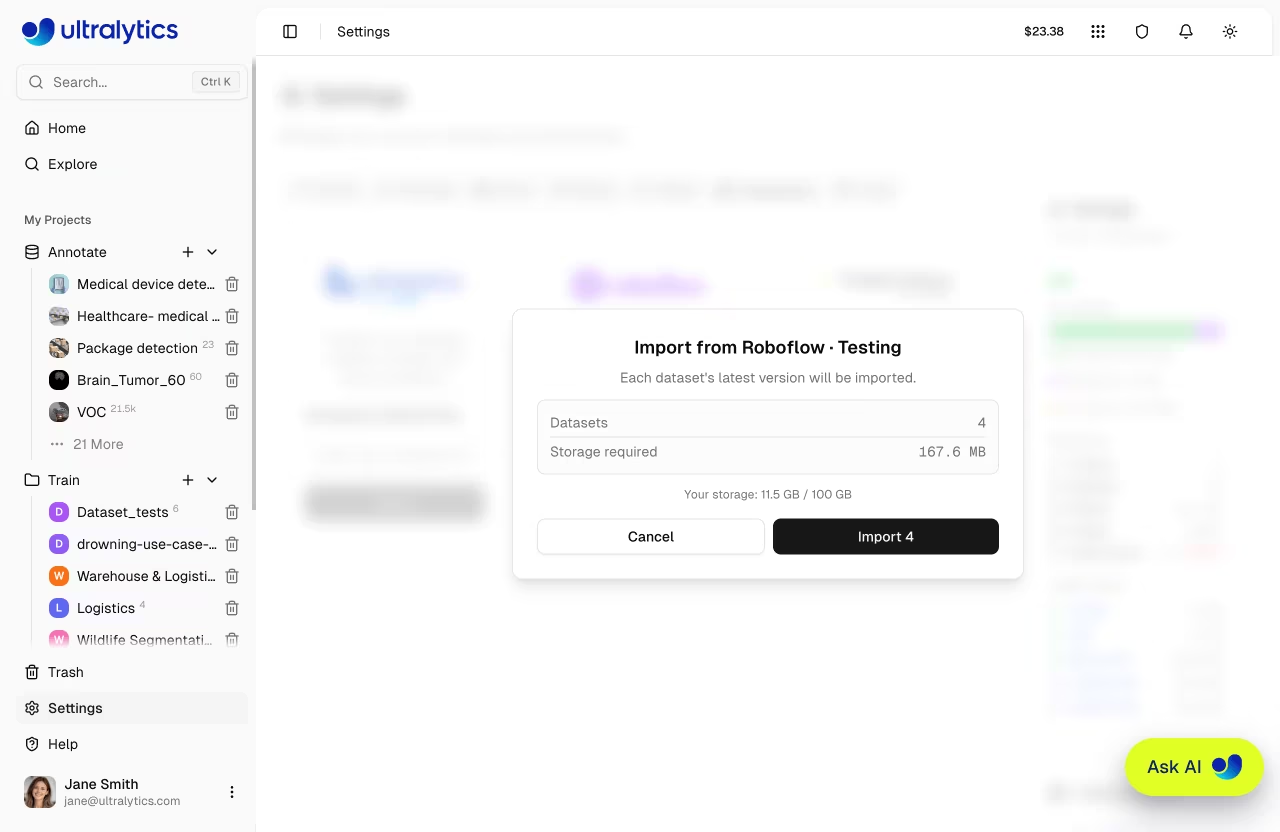
Imported datasets appear in your Datasets list immediately with a processing status and become ready once their images and annotations finish importing.
Supported Task Types
Roboflow projects are mapped to the matching YOLO task type:
| Roboflow Project Type | Platform Task |
|---|---|
| Object Detection | Detect |
| Instance Segmentation | Segment |
| Keypoint Detection | Pose |
| Single-Label Classification | Classify |
!!! note "Where to find your Roboflow API key"
Your Roboflow API key is available in your Roboflow account settings. The key is used only to run the import — it is not stored.
!!! note "Unsupported projects are skipped"
Projects with unsupported task types (such as multi-label classification) and projects that don't yet have a generated version are skipped and reported in the preview.
!!! tip "Re-run to sync new datasets"
Already-imported dataset versions are detected and skipped automatically, so you can safely re-run the import to pull in newly added datasets without creating duplicates.